Managing Leads
You can upload new leads for you and your team in this section.
Get here by clicking 'Leads' on the left-hand navigation menu.
Leads are categorised by:
- Warm
- Hot
- Red Hot
Filter, Sort & Status
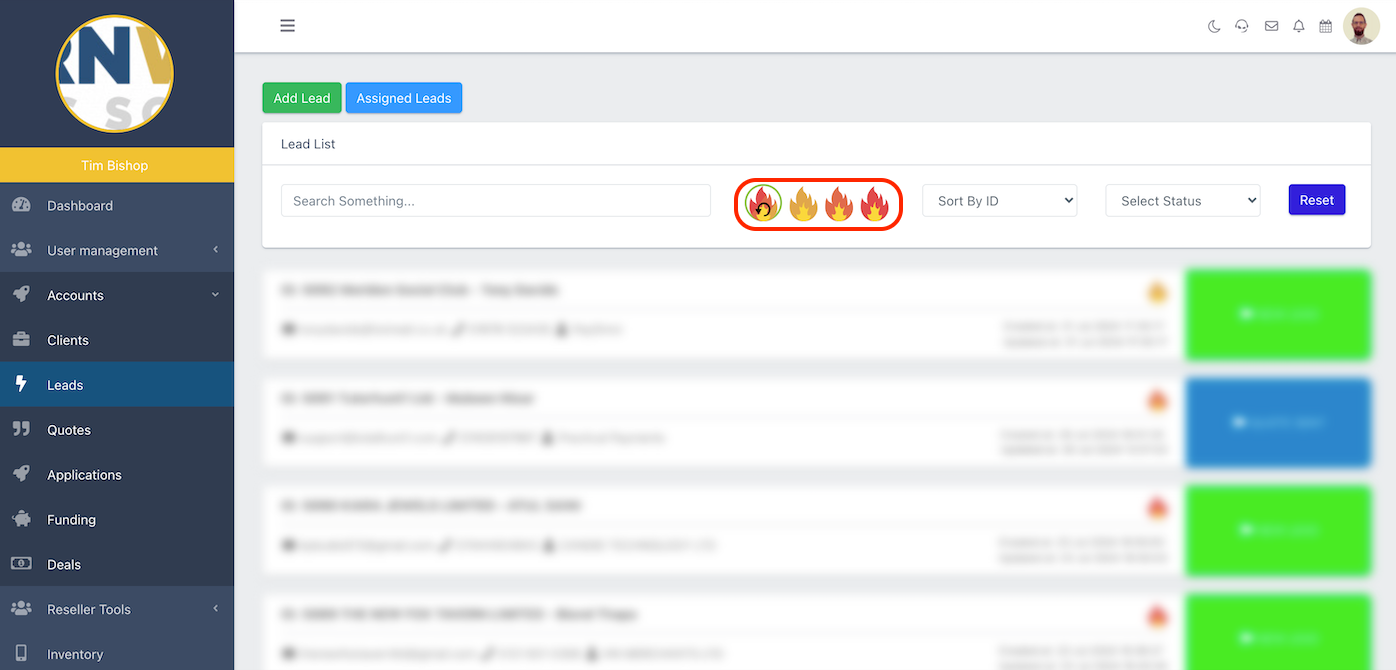
You can filter Leads by their category using the 🔥 symbols at the top of the screen.
Reset the filter using the first 🔥 icon with a reverse arrow.
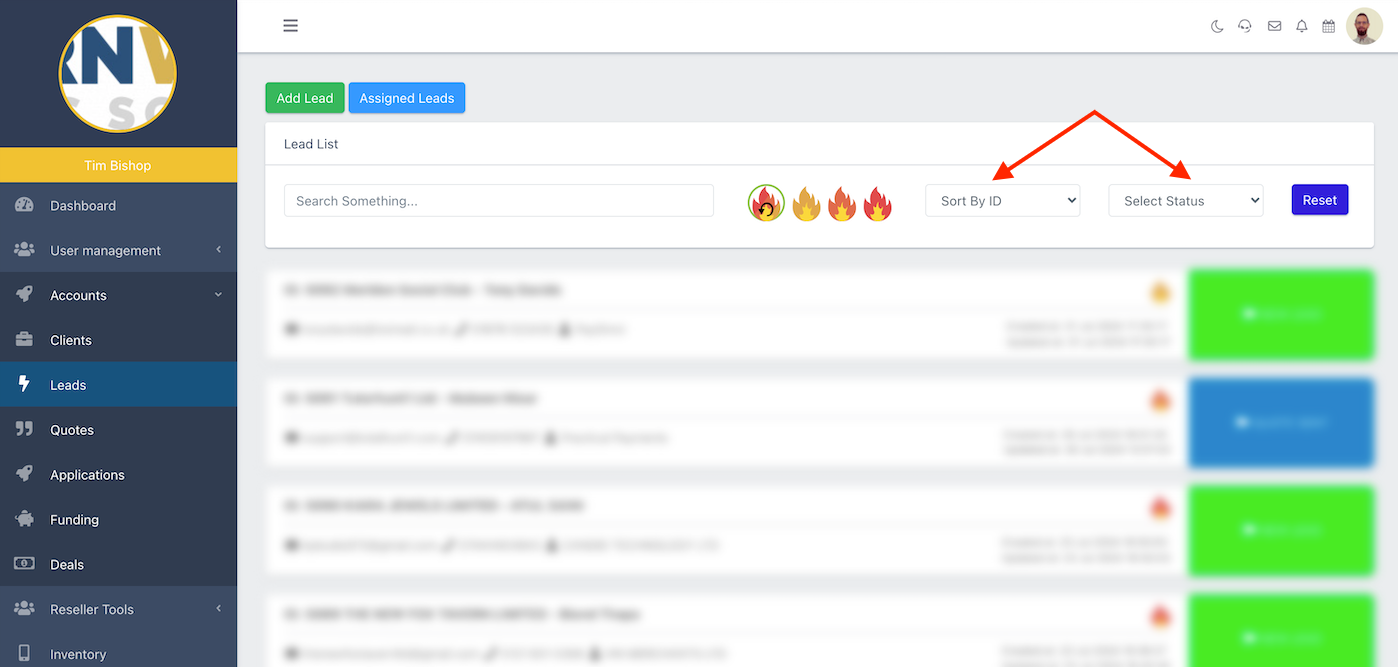
Filter the leads by ID or Status using the dropdown boxes highlighted below.
Add Lead
How to Add a New Lead
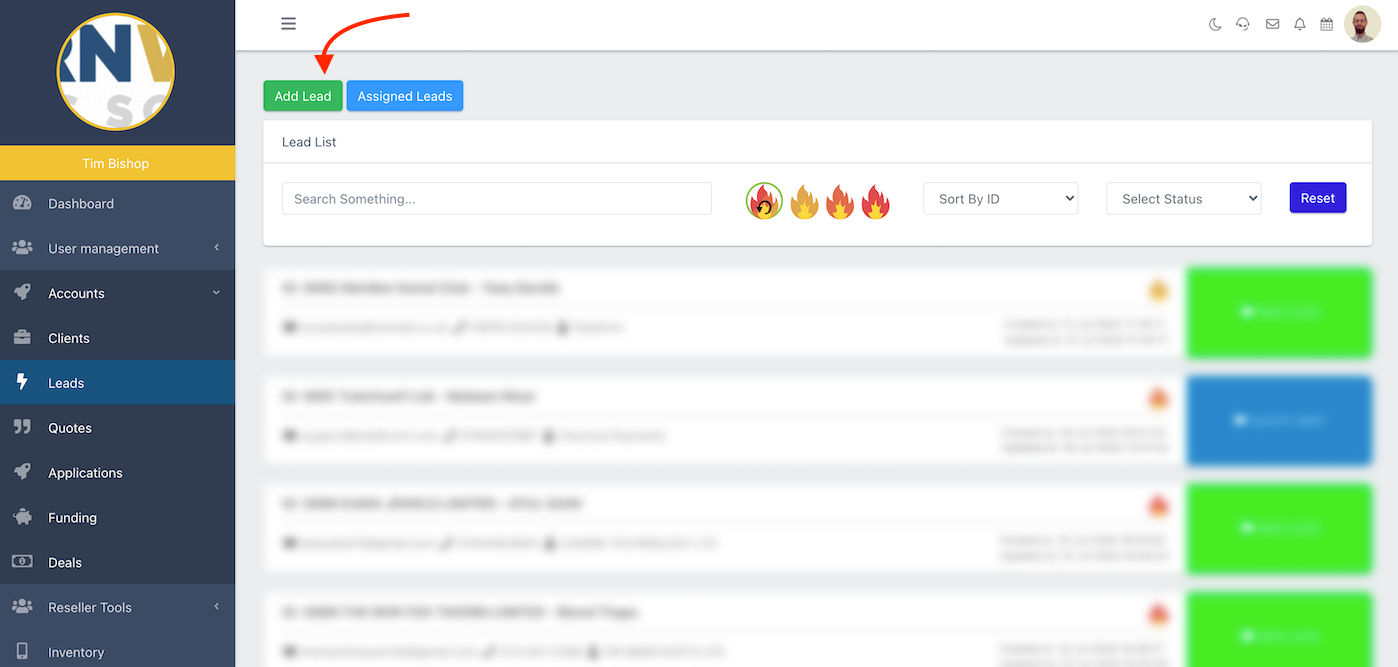
To add a Lead, click 'Add Lead' at the top of the Leads page.
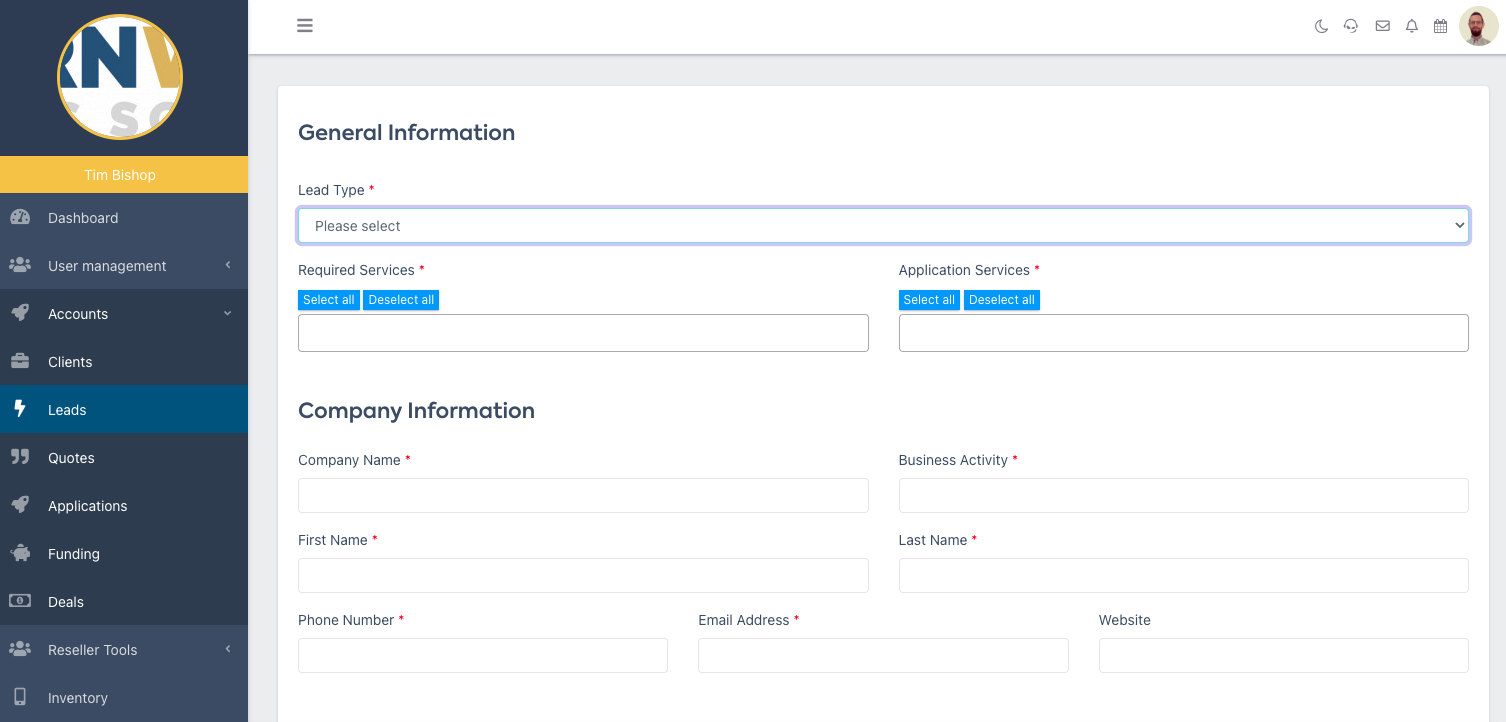
This will bring up a new screen where you can add more detail to the new lead...
General & Company Information
First, input the general details about your new Lead and their business.
Boxes marked with a red asterisk (*) are required fields.
Lead Information
Next, enter more detailed information about the new Lead and any supporting documents.
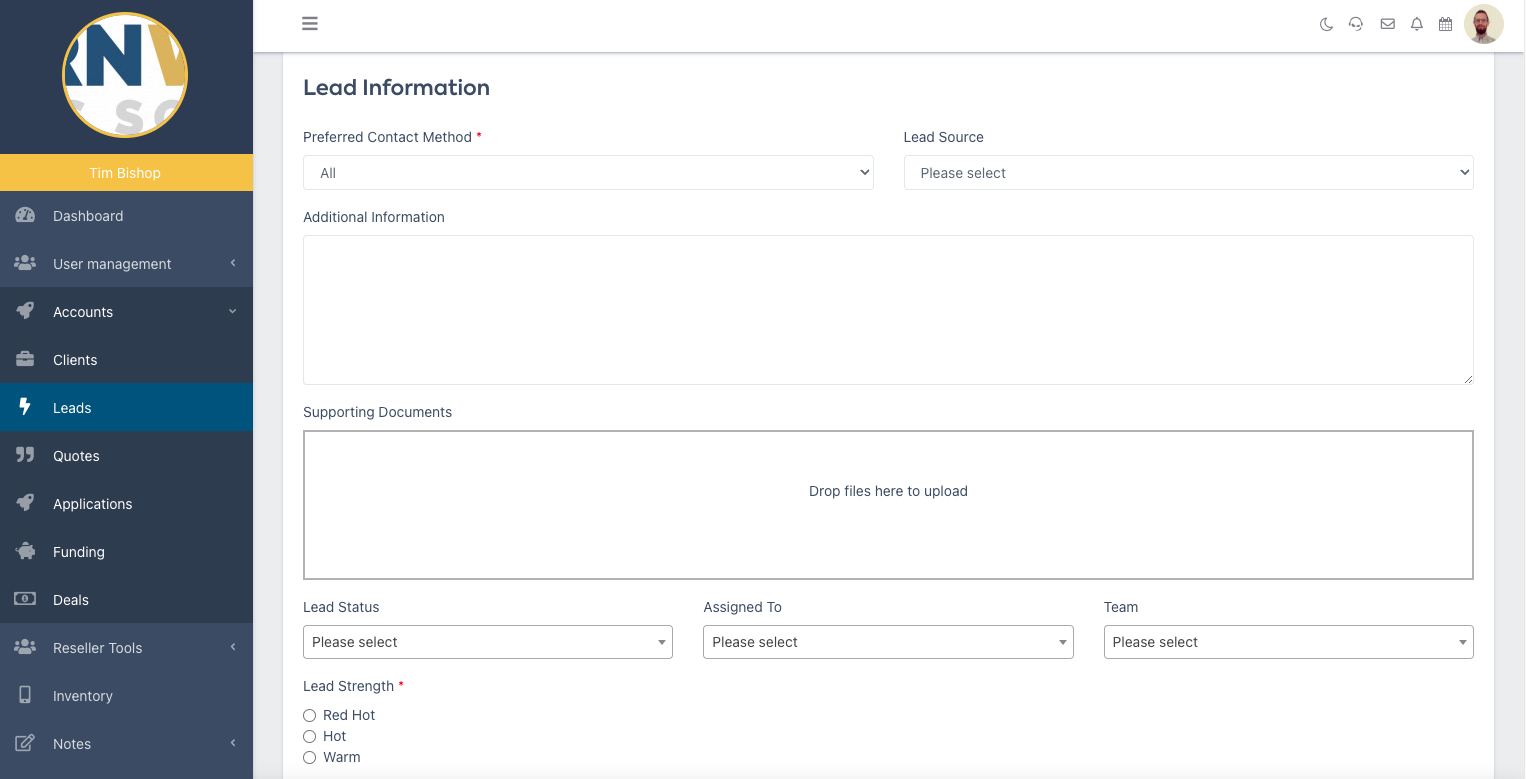
Note, in the above image, under 'Supporting Documents', the dropdown box 'Assigned To' lets you assign a lead to a particular person in your Team.
See also: Assigning Leads
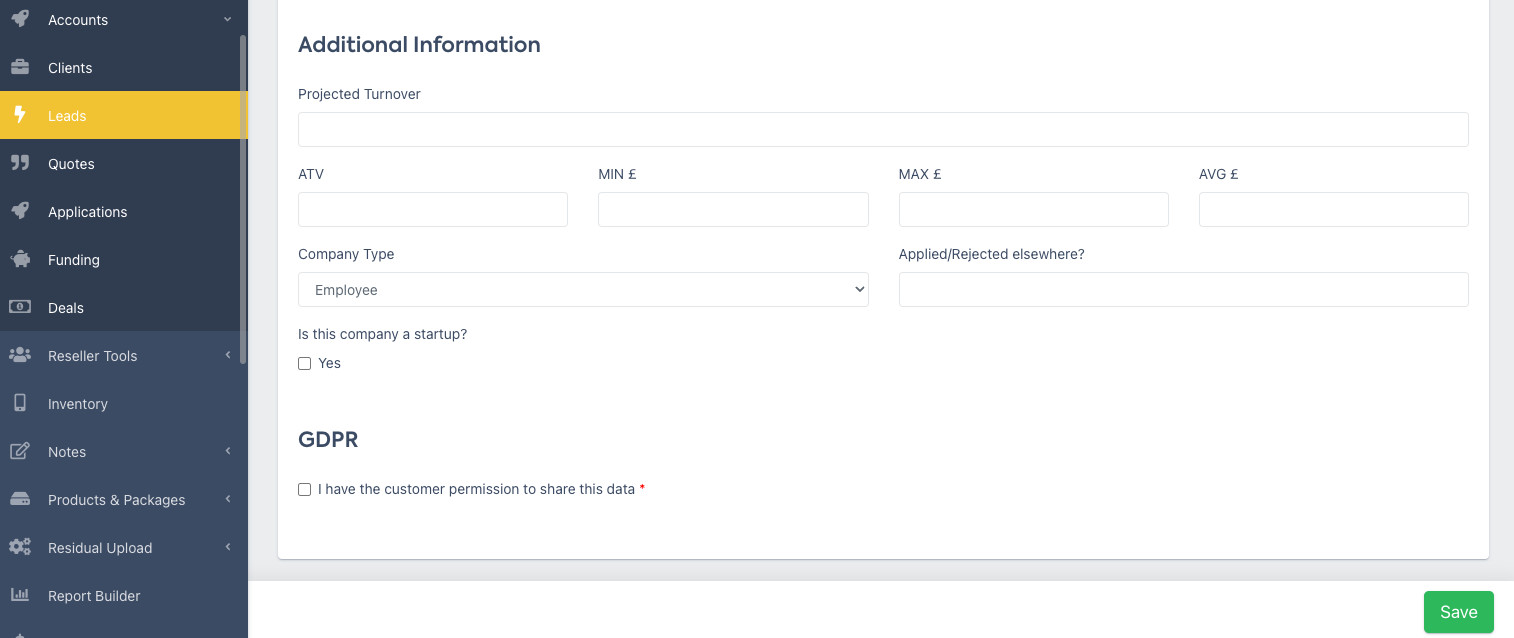
Additional Information & GDPR
Finally, you can input additional useful info you might have, and, IMPORTANTLY, check the box saying you have permission to share this data in our Partner Portal.
Assigned Leads
Next, enter more detailed information about the new Lead and any supporting documents.
Note, in the above image, under 'Supporting Documents', the dropdown box 'Assigned To' lets you assign a lead to a particular person in your Team.
See also: Assigning Leads