Getting Started
Start by creating a new application.
(You can find instructions on how to do that here.)
Boarding Type
When applying for Merchant Services you can select either Speedy Boarding or Regular Boarding from the popup that appears.
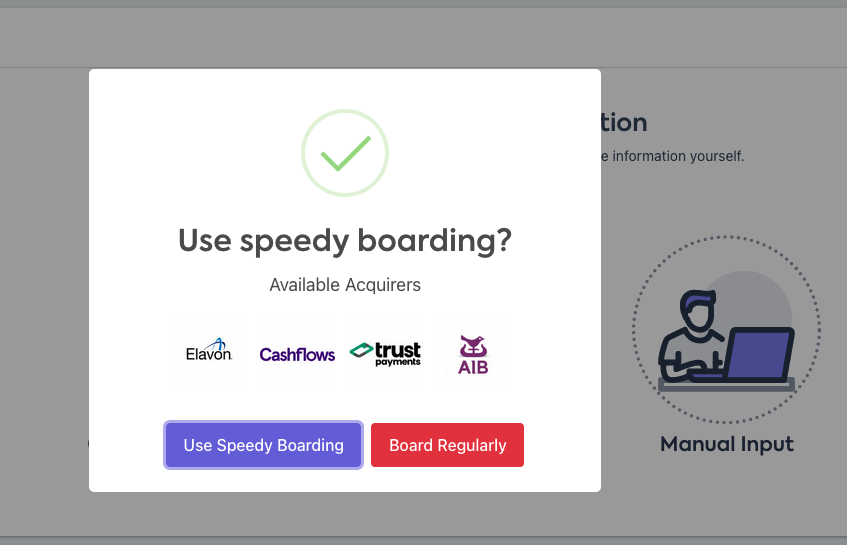
💡 Choosing the Boarding Type will display the full list of Acquiring Banks for that option.
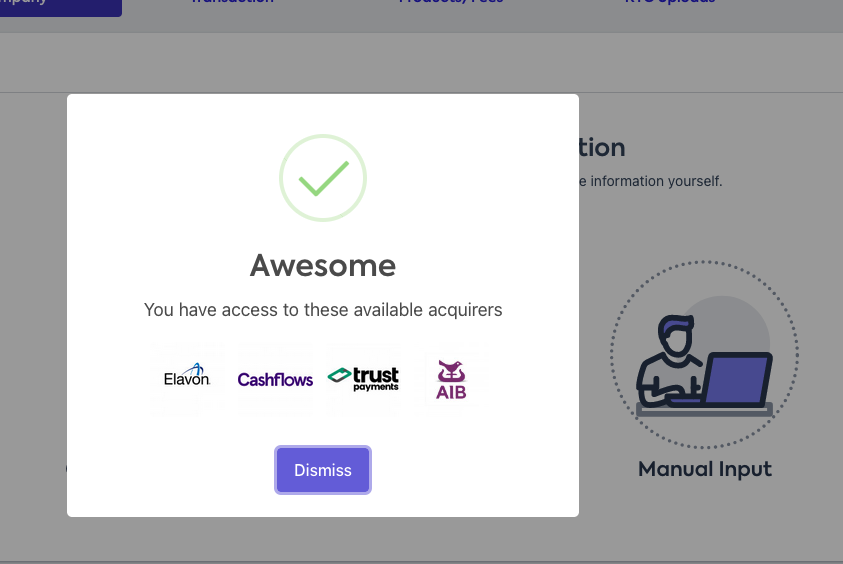
Speedy Boarding
MWBS has direct access to the onboarding process for several Acquiring Banks.
As an MWBS Partner, you can use Speedy Boarding for a faster application.
Regular Boarding
Regular Boarding is the standard onboarding process, with access to all of the MWBS Acquiring Banks. (Don't worry, it will still be quick!)
Company Information
Next, you’ll need to enter the details of the business or merchant you’re applying for. You can use the Companies House Lookup feature to pre-fill some of the fields.
A full walkthrough of this step in the application process can be found here.
**C Lookup SS**
Make sure the email address you enter for this section is functional, as it will be used to send out the agreements for eSignature.
When you’re satisfied the information is correct, click ‘Next’, and a popup will appear asking if you would like to save your application as a draft.
Select either option to continue.
**Draft SS**
Transaction Information
Services & Target Market
This section asks how the conducts their transactions, and where their target market customers are located.
For the services required, you can select Chip & Pin, Mail or Telephone Order (MOTO) or an online store (eCommerce). If the merchant uses just one of these transaction methods, enter the 100% for the relevant box. If they use multiple transaction methods, split the percentage as accurately as possible between the boxes, according to the application.
Target Market refers to the region their target customer is located. If this is split, enter the percentage as accurately as possible for each region according to the application.
TIP: You can input the numbers manually, or use the arrows to raise or lower the numbers for each box.
Note: In both instances (Services Required & Target Market), the total between the boxes must add up to 100%.
**Percentage SS**
Note: The total between the four boxes must add up to 100%.
Transactions, Refunds, Chargebacks & Seasonal Sales
Enter the Merchant’s Turnover & Transaction information, the daily Refund and Chargeback percentages, and whether there are Recurring Payments, or Seasonal sales.
**TR Ref etc SS**
Upfront Payments & Deposits
Select whether the Merchant uses Upfront Payments or a Deposit scheme, along with the lead time for product/service delivery and the percentage of transaction value those relate to.
**UF Dep SS**
Goods & Services
Here, we need a breakdown on how the Merchant delivers their service.
First, does the Merchant deliver the goods/service, or does a third party. Also provide a brief description of the Merchant’s goods/services.
Then, for the Description of Services Provided table, provide a further breakdown on how the Merchant’s services are split. If the merchant only has one service, simply fill in one box, and set the Percentage of Turnover to 100% for that box.
ATV refers to the Average Transaction Value (ATV), and the final column is the percentage that particular service represents of their total card turnover.
For example, a restaurant might be split by:
Dine-in (ATV - £50, Percentage of Turnover – 50)
Takeaway (ATV - £30, Percentage of Turnover – 20)
Delivery (ATV £30, Percentage of Turnover – 30)
TIP: The Percentage of Turnover value relates to the total card turnover, not the amount the ATV represents as a percentage. For example, the above £30 ATV for Takeaway does not mean Takeaway would be 30% of the total Turnover.
**Goods and Serv SS **
Cashback, Amex & Currencies
Use the radio boxes to choose whether the Merchant offers Cashback and or takes American Express (AMEX) cards. If they do not accept Amex, the boxes for AMEX Mid numbers will not be displayed.
**Currencies 1 SS**
After this, add the currencies the Merchant takes payments in.
TIP: You can click on the box to reveal a list of Currency options (as per the image below).
**CA Amex Cur SS**